

Description
Media Cloud Sync is an innovative plugin for WordPress that dramatically transforms how you interact with media and increases your website’s performance. This plugin allows you to transfer your files, media, and images from a WordPress server to online cloud storage, such as Amazon S3, DigitalOcean Spaces, Google Cloud Storage, Cloudflare R2 and S3 Compatible Services. It also rewrites URLs to serve files from the same storage provider or another CDN provider.
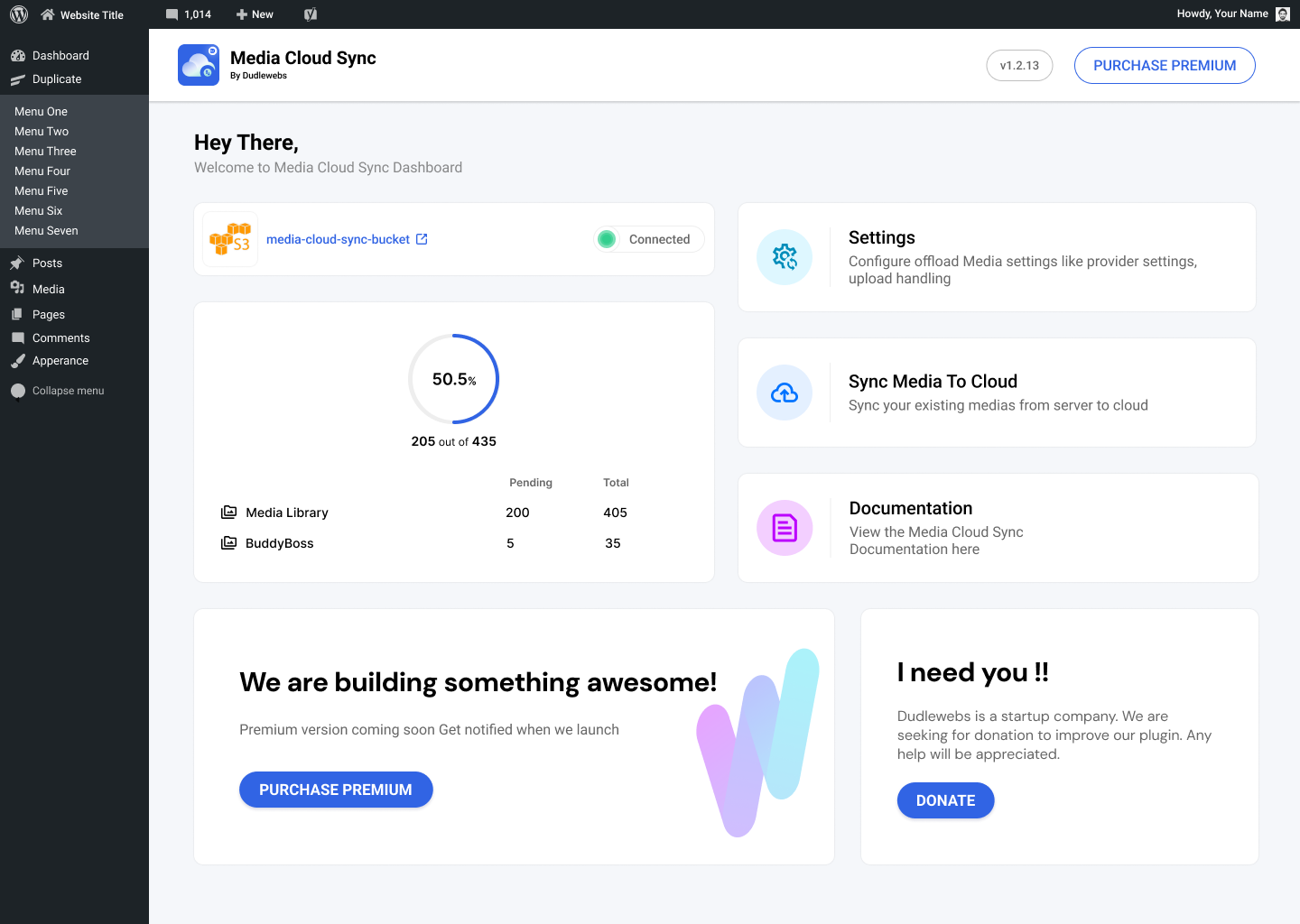
You can sync both new media files as well as existing media from your WordPress Media Library to your configured cloud storage, making it easy to sync older medias to cloud storage.
How to Manage Settings
To manage settings in the Media Cloud Sync plugin, follow these steps:
-
Access the Plugin Menu:
- In your WordPress admin dashboard, look for the Media Cloud Sync menu item in the left menu bar. This menu provides access to all the settings and features of the plugin.
-
Manage Settings:
- Click on the Media Cloud Sync menu to enter the settings area.
- You will see two main sections: Configure and Settings.
a. Configure:
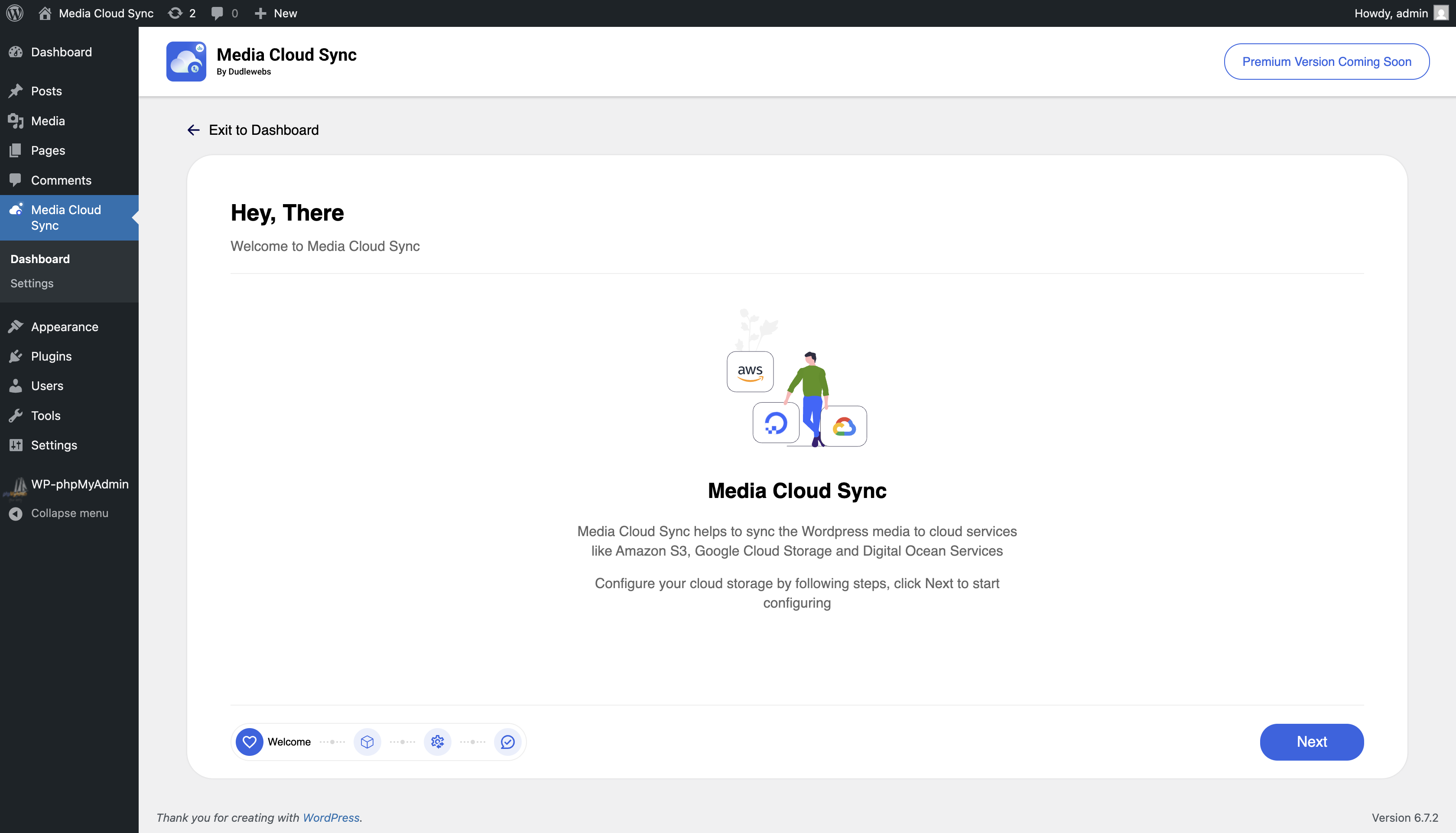
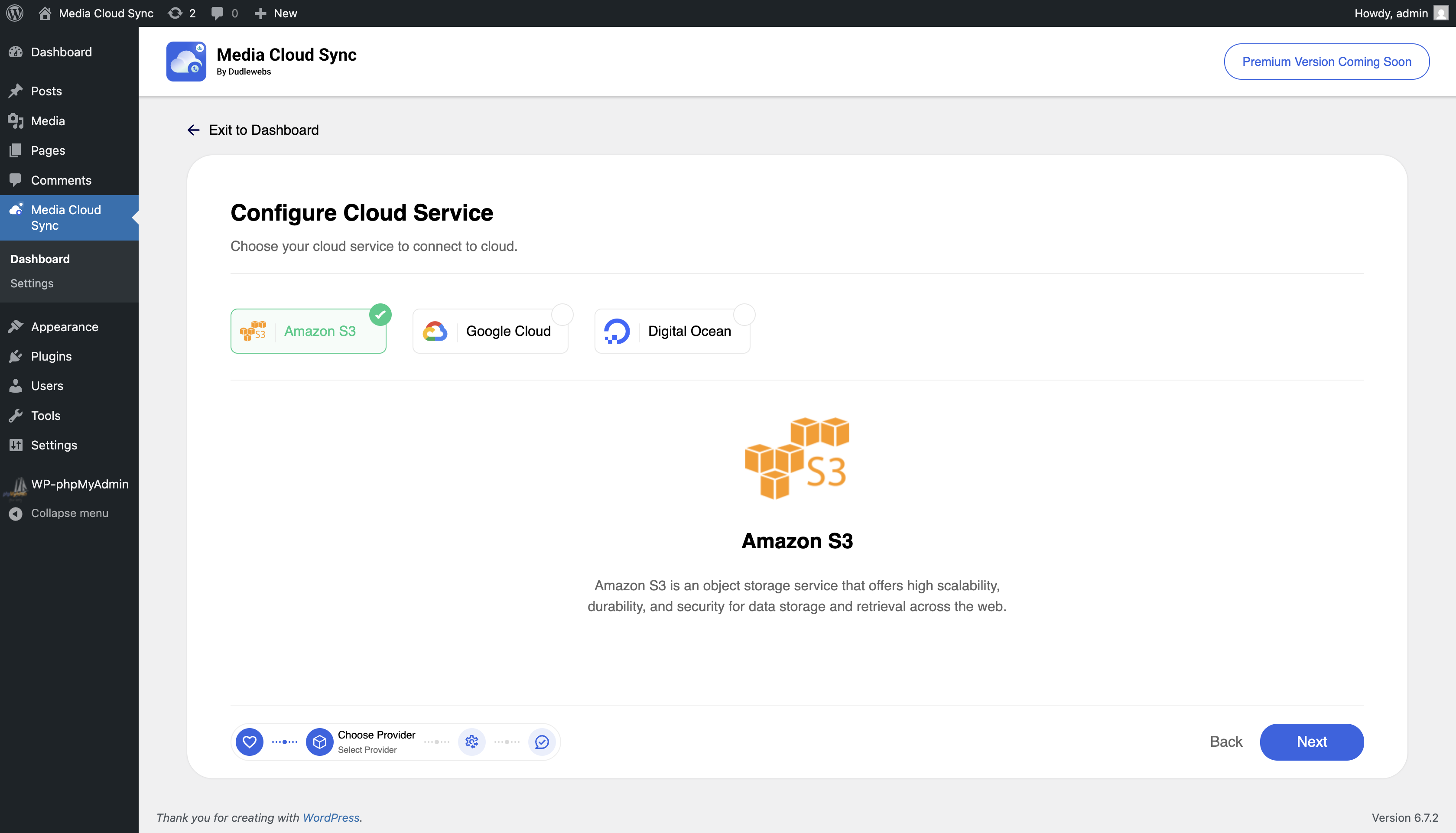
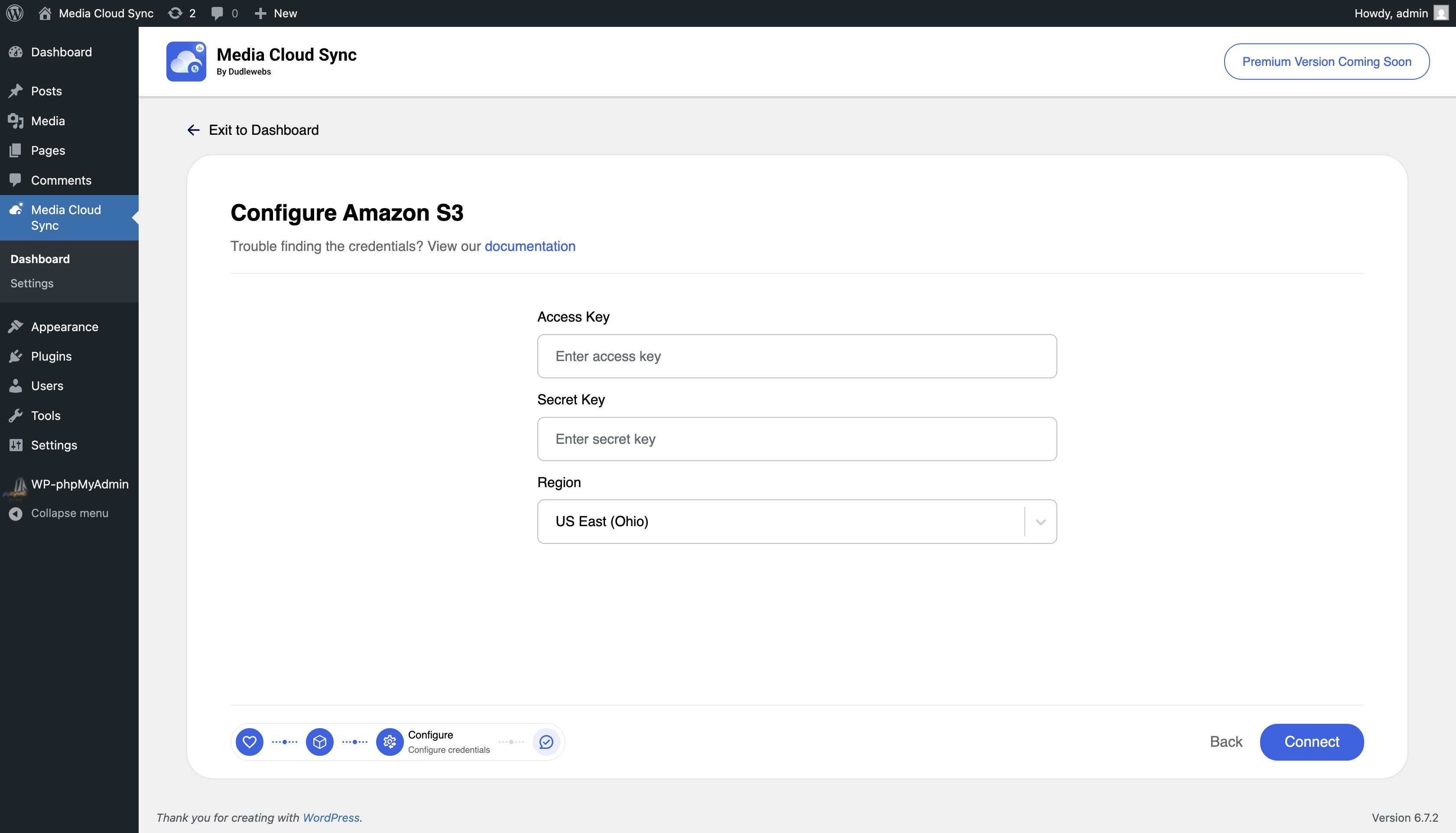
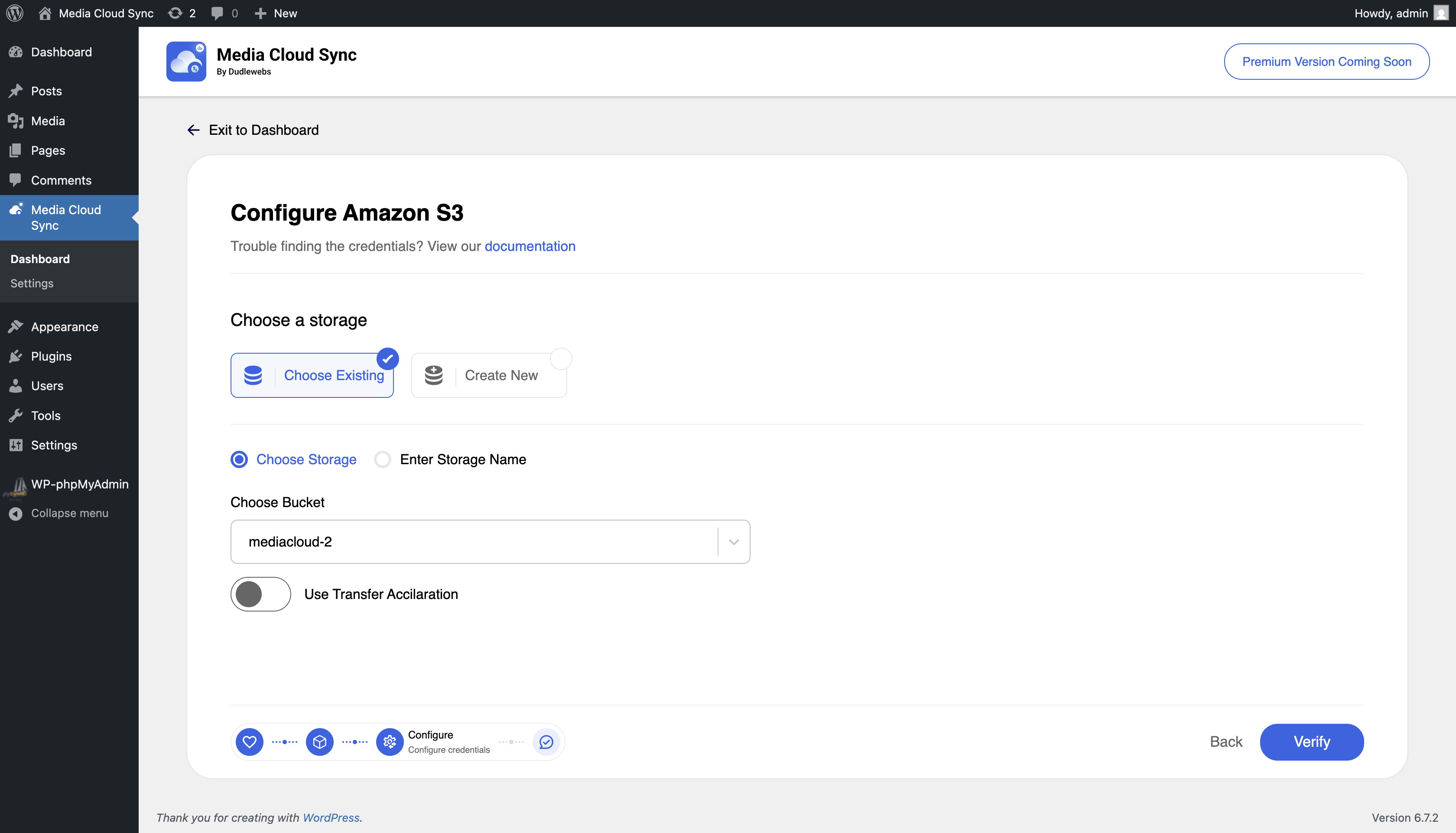
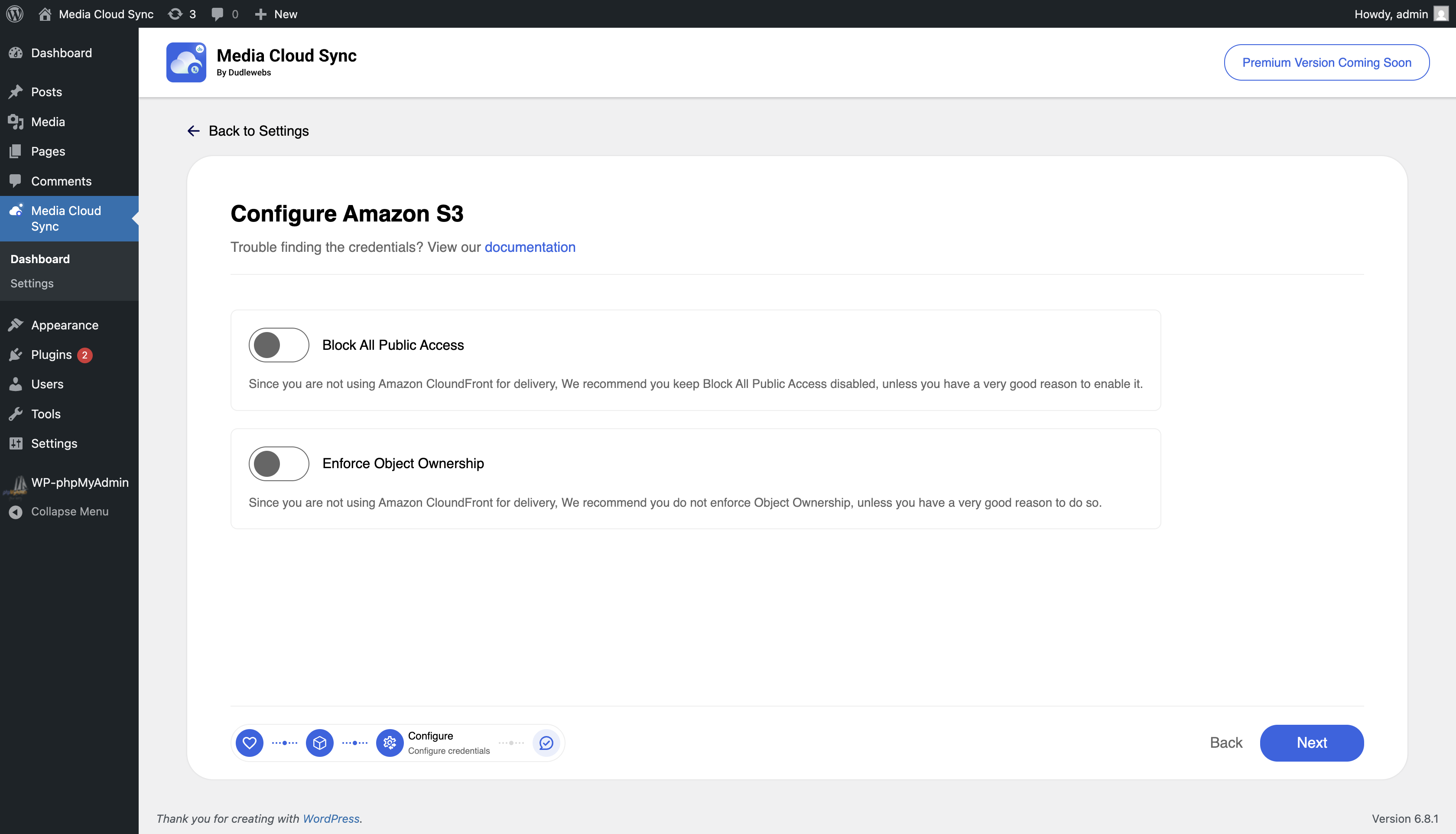
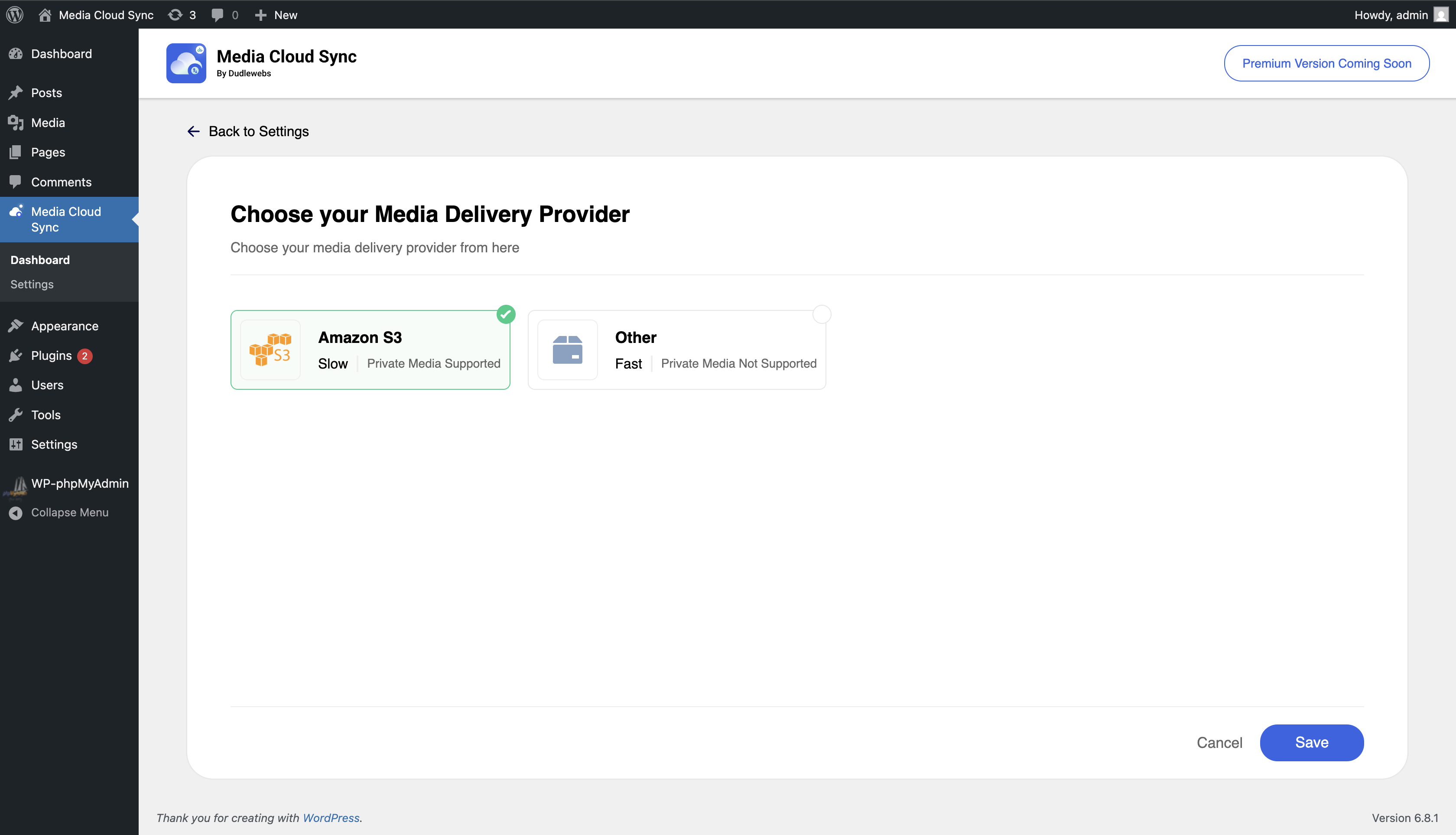
- In this section, you can set up the basic configurations for the plugin, including connecting your cloud storage account (e.g., Amazon S3, Google Cloud Storage, DigitalOcean Spaces, Cloudflare R2, S3 Compatible Services) and defining the default options for media offloading.
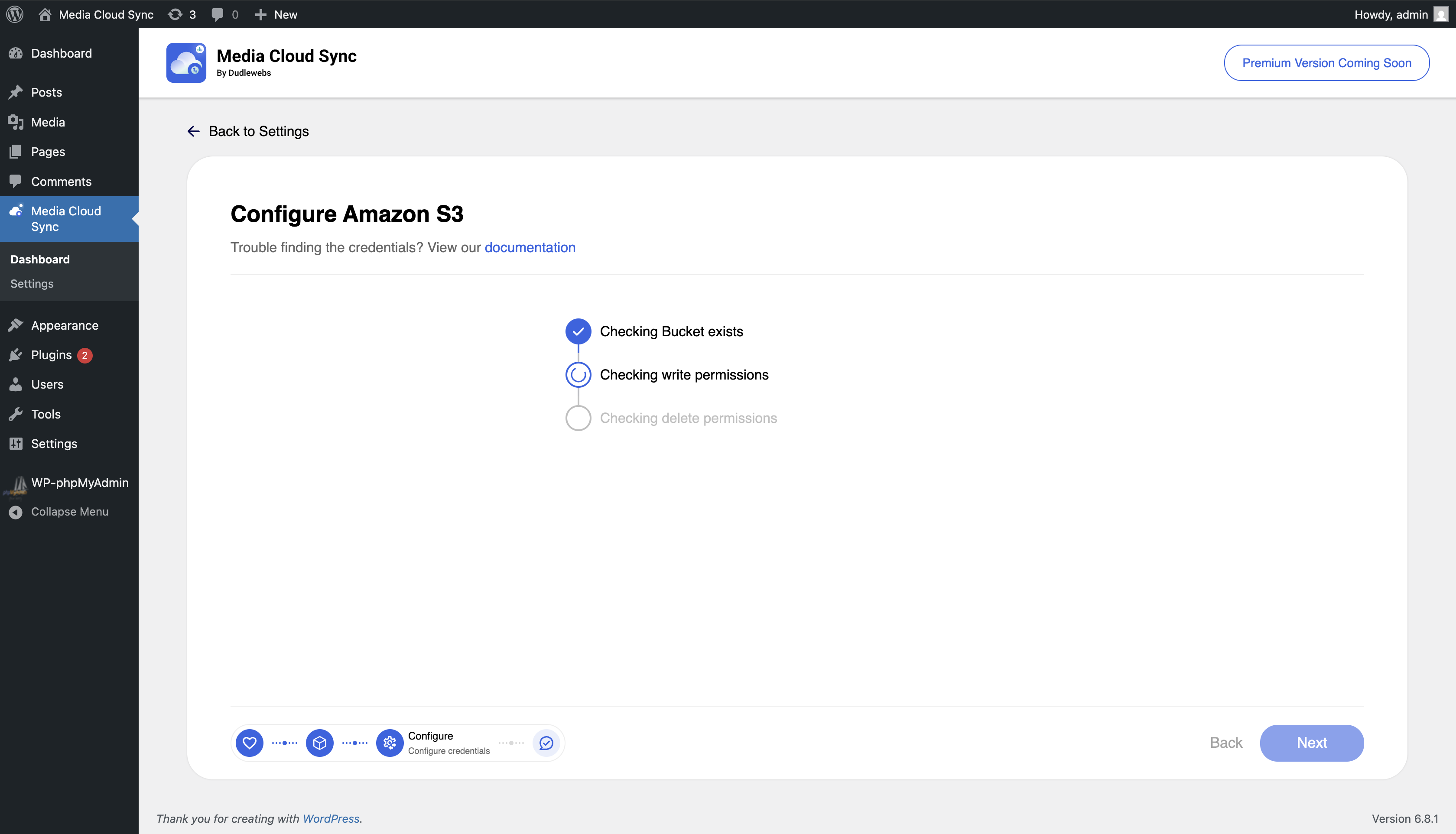
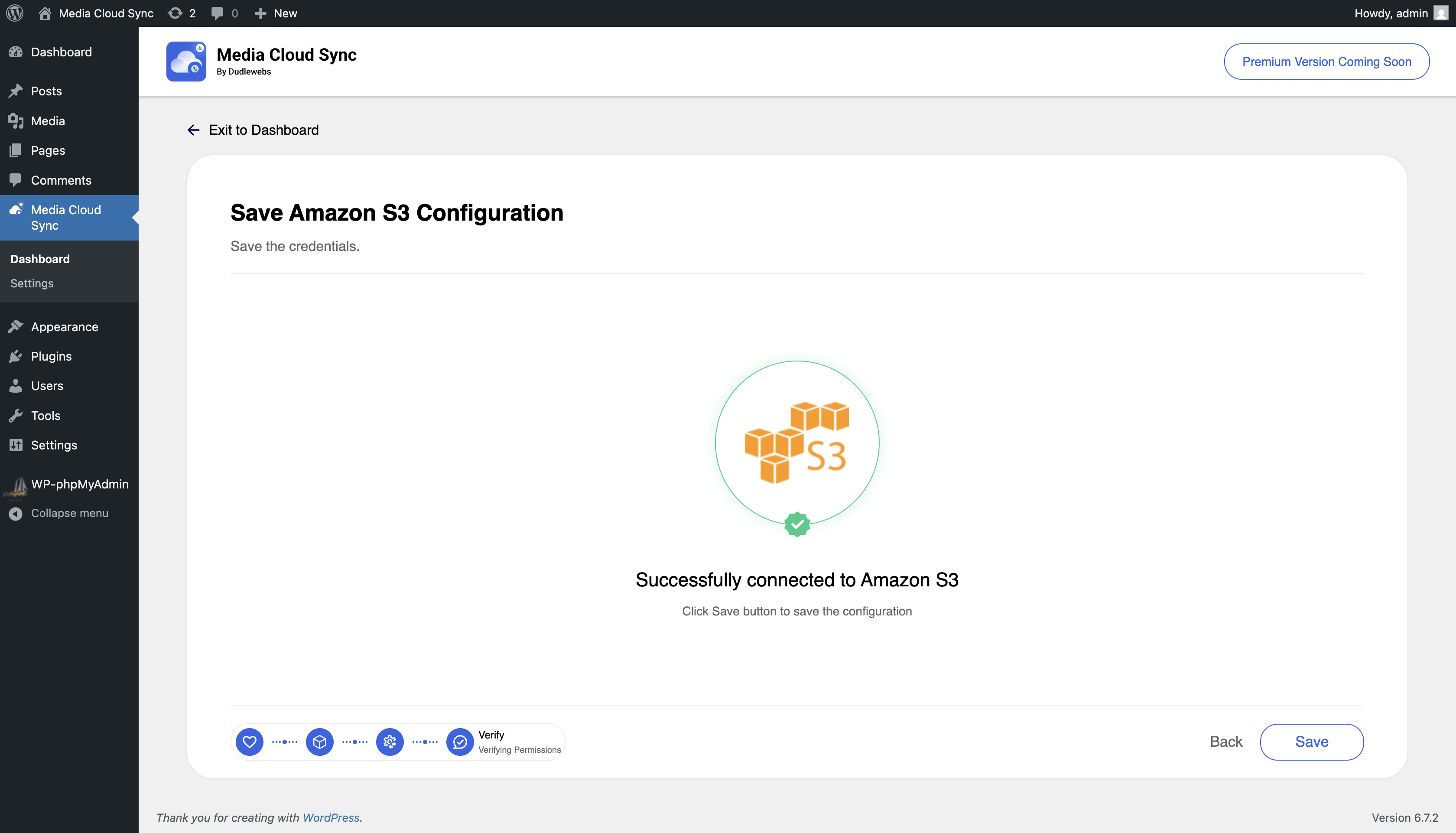
- Follow the prompts to authenticate your cloud account and grant the necessary permissions.
b. Settings:
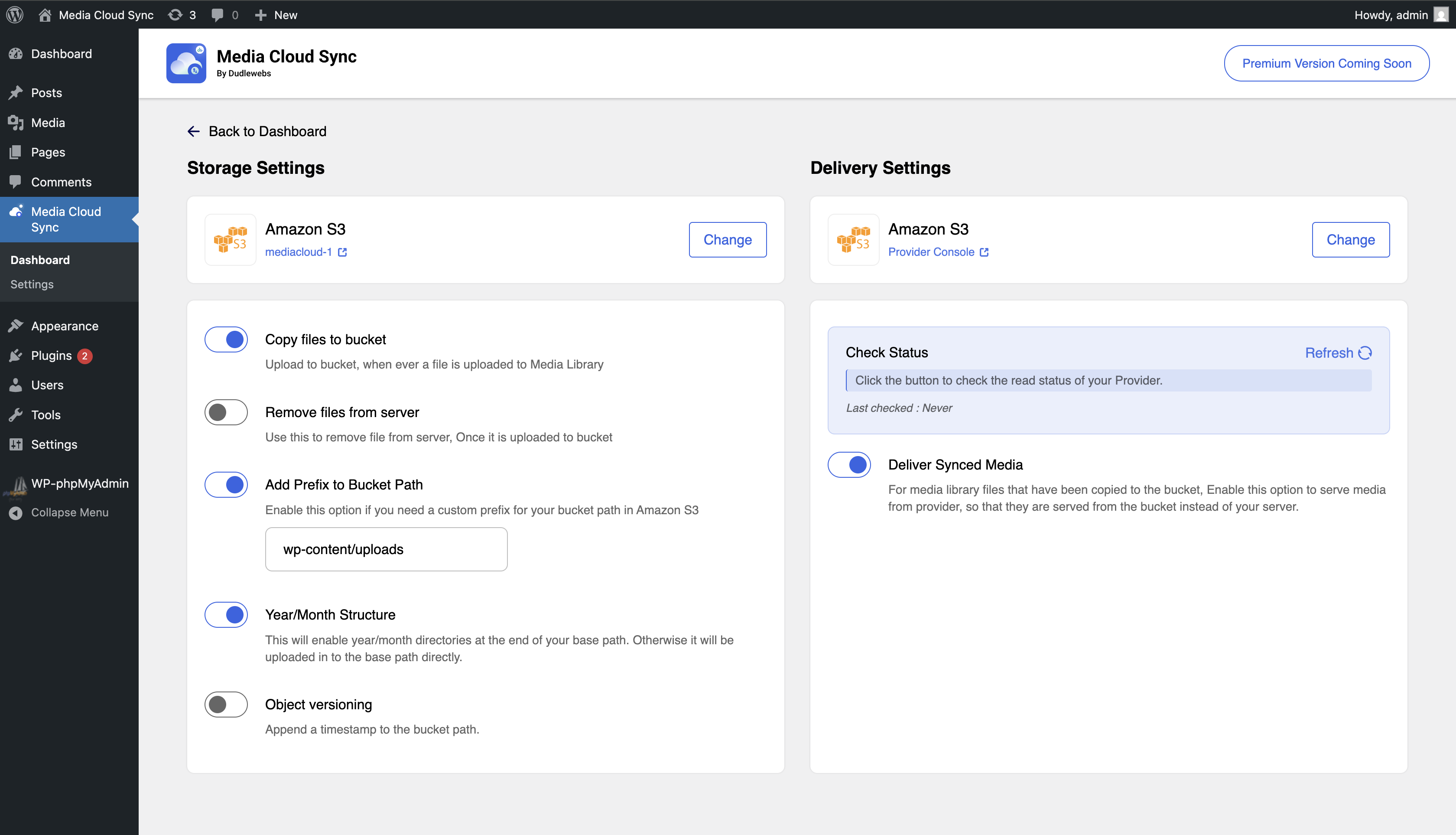
- The Settings section allows for more advanced customization options. Here, you can adjust how media files are uploaded and served from the cloud.
- Make sure to save your changes after adjusting the settings to ensure they take effect.
-
Review and Test:
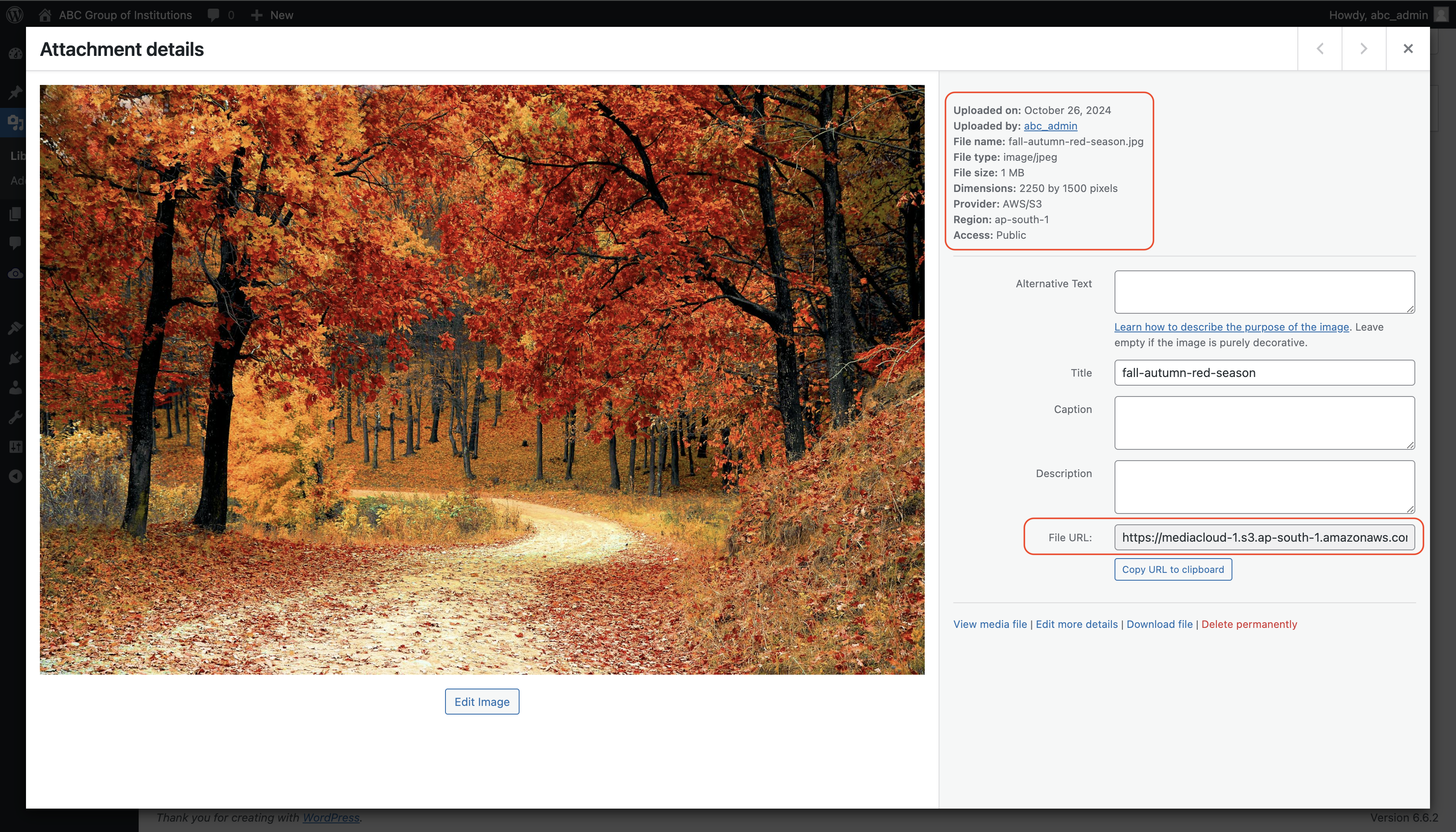
- After configuring the settings, it’s advisable to test the plugin to ensure that your media files are being uploaded and served correctly from the cloud storage.
- Upload a new media file and check if it appears in your cloud storage as expected.
Basic Features
The Media Cloud Sync plugin significantly enhances your website’s speed by offloading media to cloud servers. This approach allows your site to load more efficiently, as it reduces the number of server requests, ultimately resulting in faster page load times. Once media files—such as images, videos, PDFs, and ZIP files—are uploaded to the cloud, your server no longer needs to handle these files, freeing up resources.
Here are the key features of the Media Cloud Sync plugin:
🔹 Seamlessly sync your media to popular cloud storage solutions like Amazon S3, Google Cloud Storage, DigitalOcean Spaces, Cloudflare R2, or S3 Compatible Services.
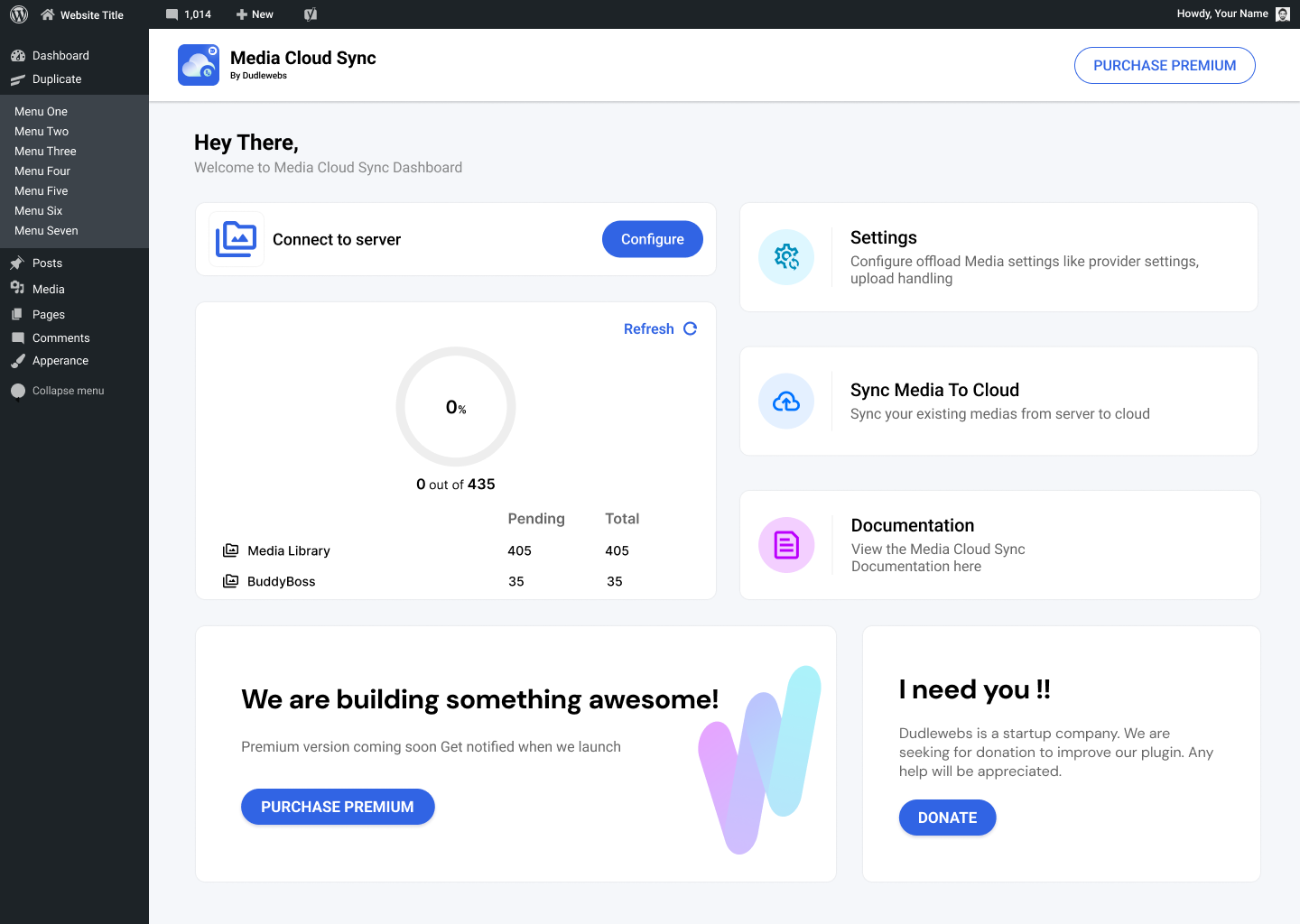
🔹 Sync existing media from your WordPress Media Library to the cloud with a simple migration tool.
🔹 Automatically delete files from the server after they are uploaded to the cloud, optimizing storage use.
🔹 Customize the base path for server storage to suit your organizational needs.
🔹 Tailor the URL structure for your media files to enhance your site’s SEO and user experience.
🔹 Enable object versioning to prevent invalidations of your media files.
🔹 Utilize a custom CDN for serving your media URLs, improving loading speeds and reliability.
🔹 Generate pre-signed URLs for secure access to your media files.
🔹 Enjoy built-in support for WooCommerce, ensuring smooth integration with your online store.
🔹 Leverage compatibility with Advanced Custom Fields for enhanced flexibility.
🔹 Benefit from RTL (Right to Left) support for multilingual websites.
🔹 Access WPML string translation support for seamless multilingual content management.
🔹 Enjoy seamless compatibility across multisite networks for centralized management and consistent performance.
Pro Features
Media Cloud Sync Pro extends the free plugin with cloud-side management tools, faster bulk operations, and per-item control directly from the Media Library:
🔹 Media Library actions — Sync to Cloud, Force Re-upload, Remove from Server, Restore from Cloud, Remove from Cloud, and View on Cloud, directly on the single-attachment popup and as bulk dropdowns in both grid and list view, with a cloud-offload status badge/column and a Synced/Not Synced filter.
🔹 File Manager — browse your connected cloud bucket, download as zip, restore to server, move, and delete files, with per-item and bulk actions.
🔹 Restore Media to Server — bulk-restore previously offloaded media from the cloud back to your server.
🔹 Move Media to New Path — bulk-move already-synced media to a newly configured base path.
🔹 Bucket-to-Bucket Migration — copy synced media to a new provider, bucket, or account, including reusing an already-connected credential source as the migration destination.
🔹 Ajax/Mixed Sync Method — run bulk sync live in the browser (Ajax) or with automatic WP-Cron fallback (Mixed), instead of Cron-only.
🔹 Delivery Settings: Cache-Control duration — set a custom Cache-Control max-age (or explicit no-cache) per storage/CDN choice for newly uploaded files.
🔹 Include/Exclude Extensions — control exactly which file types get uploaded to the bucket.
🔹 And more…
Other Useful Links
🔹 Official website
🔹 Documentation
🔹 Get Media Cloud Sync Pro
External Services
This plugin integrates with third-party services to enhance its functionality. Below is an overview of the external services utilized, the data transmitted, and relevant legal documentation for your reference.
-
Google Cloud Storage
- Description: Connects to manage media files, allowing upload, download, and delete operations.
- Data Sent: User authentication data, file metadata (name, size, MIME type), user location data (if explicitly provided).
- Legal Links: Terms of Service, Privacy Policy
-
Amazon S3
- Description: Facilitates media file management, enabling seamless upload, download, and delete actions.
- Data Sent: User authentication data, file metadata (name, size, MIME type).
- Legal Links: Terms of Service, Privacy Policy
-
DigitalOcean Spaces
- Description: Manages media files efficiently, allowing file storage, retrieval, and deletion.
- Data Sent: User authentication data, file metadata (name, size, MIME type).
- Legal Links: Terms of Service, Privacy Policy
-
Cloudflare R2
- Description: Provides efficient, low-cost object storage with S3-compatible APIs, enabling seamless upload, retrieval, and deletion of media files.
- Data Sent: User authentication data, file metadata (name, size, MIME type).
- Legal Links: Terms of Service, Privacy Policy
-
S3 Compatible Services
- Description: Manages media files efficiently, allowing file storage, retrieval, and deletion.
- Data Sent: User authentication data, file metadata (name, size, MIME type).
Screenshots
Installation
Installation of “Media Cloud Sync” can be done either by searching for “Media Cloud Sync” via the “Plugins > Add New” screen in your WordPress dashboard or by using the following steps:
- Download the plugin via WordPress.org.
- Upload the ZIP file through the ‘Plugins > Add New > Upload’ screen in your WordPress dashboard.
- Activate the plugin through the ‘Plugins’ menu in WordPress.
FAQ
-
How do I install the plugin?
-
You can install the plugin from the WordPress plugin store or upload it manually.
-
Is there a limit on the number of files I can sync?
-
No, you can sync as many files as you need. Both newly uploaded media and existing media in your library can be synced.
-
How do I sync my media files to the cloud?
-
After activating the plugin, go to the configure page and follow the prompts to connect your cloud account. Then, navigate to settings and configure them according to your needs. Upload a media file in the Media Library, and you will see that the URL has been replaced by the cloud server URL.
If you already have media files in your library, use the Sync Media To Cloud option to migrate them to the cloud. -
What is Existing Media Sync?
-
Existing Media Sync is a feature that lets you migrate files that were uploaded to your WordPress Media Library before installing or configuring the plugin.
Instead of manually re-uploading older files, you can run the Sync Media To Cloud tool from the plugin dashboard, and it will automatically upload them to your connected cloud storage. -
What cloud providers are supported?
-
Currently, the plugin supports major cloud providers such as AWS S3, Google Cloud Storage, DigitalOcean Spaces, Cloudflare R2 and All S3 Compatible Services.
-
Is WPML supported?
-
Yes, the Media Cloud Sync plugin is fully compatible with WPML.
-
Is Multisite supported?
-
Yes, the Media Cloud Sync plugin is compatible with Multisite and it will works as an individual plugin for all the sites under multisite.
-
Can I use S3-compatible services?
-
Yes, the Media Cloud Sync plugin supports S3-compatible services. You simply need to provide the correct configuration details. Should you encounter any issues, please contact us via our official website. We will investigate the matter and provide an appropriate resolution.
Reviews


Contributors & Developers
“Media Cloud Sync” is open source software. The following people have contributed to this plugin.
Contributors
“Media Cloud Sync” has been translated into 1 locale. Thank you to the translators for their contributions.
Translate “Media Cloud Sync” into your language.
Interested in development?
Browse the code, check out the SVN repository, or subscribe to the development log by RSS.
Changelog
1.4.0
- Compatibility: WordPress 7.1
- Bug Fix: WooCommerce image regeneration restored offloaded files to the server to resize them but never removed them again, even with “Remove from server” enabled, and could leave stale, un-regenerated images on the cloud since the plugin’s “unchanged, skip reupload” check couldn’t tell a regenerated file at the same size apart from a real no-op. Regenerated files are now always re-uploaded, and restored copies are cleaned up once WooCommerce is done with them.
1.3.12
- Tweak: Pro upgrade prompts now link to the live product page and list the actual Pro features (Media Library actions, File Manager, Restore to Server, Move to New Path, Bucket-to-Bucket Migration, faster Ajax/Mixed sync). Added an “Upgrade to Pro” plugin action link on the Plugins screen for non-Pro sites.
- Feature: File Manager (Pro) — browse your connected cloud bucket, download as zip, restore to server, move, and delete files, with per-item and bulk actions.
- Feature: Added CDN provider presets (Amazon CloudFront, Bunny.net, Fastly, Cloudflare CDN, Akamai, KeyCDN, Gcore, Edgio, Leaseweb CDN, CDNetworks) to every storage service’s CDN settings.
- Feature: Sync Method toggle (Ajax/Cron/Mixed) on the Sync screen for Pro-licensed users. Controls whether bulk sync runs via the browser, WP-Cron, or both.
- Bug Fix: Security — SQL injection risk in media path and settings queries. Fixed with $wpdb->prepare.
- Bug Fix: purge_all_versions() could leave old files undeleted on providers (e.g. Cloudflare R2) that don’t support listing object versions.
- Bug Fix: File Manager’s shift-click range selection didn’t collapse back down when re-clicking a row inside an existing selection.
- Bug Fix: Background sync could be slow to respond to Pause/Stop. Concurrent triggers could also duplicate an upload or lose track of its status.
- Bug Fix: Sync could skip or reprocess items if the media library changed mid-run. Multipart retries were uncapped, file handles could leak on failed uploads, and sync log writes weren’t locked.
- Bug Fix: Images waiting on WordPress-generated thumbnails are now retried instead of marked failed. Upload failures now log the real provider error. Ajax sync mode now resumes correctly after the browser Back button.
- Bug Fix: Storage credential and connection checks fixed across S3, DigitalOcean Spaces, Google Cloud Storage, Cloudflare R2, and S3-Compatible providers.
- Bug Fix: S3 Block Public Access status was dropped for partially blocked buckets. Cloudflare R2’s CDN check falsely showed “Access Denied” with custom domains.
- Bug Fix: Several Media Library and attachment-detail bugs — a PHP 8.4 fatal in the image tag filter, a missing capability check, a wrong Access (public/private) value, and Customizer background image lookup for offloaded media.
- Bug Fix: WooCommerce image resize/regeneration — filter stacking consolidated into one handler, with a fallback to the original file if cloud restore fails.
- Bug Fix: Imagify optimization now uses a proper CDN adapter instead of stacking filters. WebP integration and Customizer crop actions no longer risk a fatal error.
- Bug Fix: Settings/Configure pages no longer get stuck loading, verifying, or saving. Validation now catches unset or invalid fields, including bad JSON credential files.
- Bug Fix: Settings and Dashboard pages no longer crash before a provider is configured. Dashboard media counts now aggregate correctly.
- Bug Fix: Recursively nested wpmcs_status_data from status writes; repaired via DB upgrade 1.0.6.
- Bug Fix: ACF cropped image original file wasn’t deleted from the server.
- Tweak: Redesigned plugin deactivation survey with improved validation.
- Tweak: Database Upgrade progress polling no longer floods the REST API.
- Feature: Storage layer now supports exact-key uploads, cross-bucket server-side copies, and connections bound to explicit (non-global) credentials — the foundation for Bucket-to-Bucket Migration (Pro).
- Tweak: Multipart upload threshold is now explicitly honored on every provider, and per-object ACL headers are stripped consistently, matching this plugin’s bucket-level (not per-object) visibility model.
- Bug Fix: The storage “Check Status” read-access check could show a stale “Access Denied” result from CDN caching even after real access was fine — the check’s dummy object and request are now marked no-cache.
- Tweak: File Manager breadcrumb separator icon was rendering with excess built-in padding, making it look tiny — cropped to its actual glyph bounds.
- Tweak: “Use Existing” credential-source option (reuse the currently-connected account) is now available wherever credentials are configured, including as a migration destination.
- Feature: Delivery Settings — newly uploaded files get a Cache-Control header, 1 month by default; Pro can set a custom duration (or 0 for no-cache) per storage/CDN choice.
- Feature: Include/Exclude Extensions fields (Pro) control which file types get uploaded to the bucket.
- Bug Fix: Ajax/Mixed sync method’s tick loop could silently stop after one iteration due to a redux dependency bug — affected all sync types under ajax/mixed mode.
- Bug Fix: Item::update() could fail with a duplicate-key database error when moving an item to a different provider/bucket/region if a stale row already existed at the target identity.
1.3.11
- Feature: wp-config.php credentials support (WPMCS_CONFIG).
- Feature: Connection status checks for storage and CDN.
- Bug Fix: Redis Object Cache and object cache compatibility.
- Bug Fix: Settings page and wp-config credential handling.
- Compatibility: WordPress 5.9+ and PHP 8.1+.
1.3.10
- Bug Fix: Version not supported issue on google SDK.
- Tweek: PHP compatibility restriction updated.
- Optimization: Lazy Loaded SDK.
- Compatibility: WordPress Version 7.0
1.3.9
- Compatibility: Updated AWS SDK.
- Compatibility: Updated Google Cloud SDK.
- Compatibility: Pro Version Licensing support.
1.3.8
- Bug Fix: Critical error when file type not supported.
- Bug Fix: Removed file type check from media library.
- Tweek: New filters to skip image size upload and skip a specific sizes
1.3.7
- Bug Fix: WooCommerce updation of thumbnail size not updating in frontend from customizer.
- Bug Fix: Source set Generate function has original even if there is no original file in source set.
1.3.6
- Compatibility: Imagify compatbility added.
- Bug Fix: Updated background runner.
- Bug Fix: Optimized database structure.
- Bug Fix: Optimized code base.
- Bug Fix: Added database fetching optimization.
- Bug Fix: Too many file open issue fixed.
1.3.5
- Feature: New service Cloudflare R2
- Bug Fix: Background Runner Error warning fixed.
- Bug Fix: Removed Unwanted files from plugin
- Bug Fix: Removed warning from content.php
- Bug Fix: Limit Background Runner to maximum 20 media per CRON run
- Tweek: New filter for get media
- Compatibility: WordPress Version 6.9
1.3.4
- Bug Fix: Caching plugins compatbility fixed.
- Bug Fix: Minor Bug Fixes
- Tweek: PRO version compatibility classes
- Tweek: Updated Logos and Banners
1.3.3
- Bug Fix: Sync Media To Cloud Page not working
1.3.2
- Bug Fix: Log file exist check added to avoid warning
- Bug Fix: Sync disabled when CRON is disabled
- Bug Fix: Edited Image files are now removed from server
- Bug Fix: Fixed Customizer fatal error
- Bug Fix: Background runner in consistency fixed
- Bug Fix: UI Breakage issues resolved
- Bug Fix: Fixed previous sttus checked date clearing issue
1.3.1
- Bug Fix: Plugin specific folder is not creating and avoid adding htaccess in uploads folder
1.3.0
- Feature: Existing Media Sync is added
- Feature: UI is updated for better UX
- Bug Fix: S3 Compatible Console link Updated
- Bug Fix: Customizer is breaking while plugin is active
1.2.13
- Bug Fix: Fixed Delete Error
- Bug Fix: Fixed S3 Compatible, Issue when no region is mentioned
- Bug Fix: S3 SDK Update
- Tweek: Code Structure Updated
- Tweek: Removed use of hook wp_generate_attachment_metadata
- Tweek: Avoided creating plugin additional folder. Since it is not required for newer versions
- Compatibility: Force Regenerate Thumbnails Added
1.2.12
- Tweek: Plugin Structure Updation
- Compatibility: ACF Added
- Compatibility: Regenerate Thumbnails Added
1.2.11
- Tweek: Google Cloud Config file saved as file before, and Currently avoided to used db itself
- Bug Fix: Minor UI bugs fixed
1.2.10
- Bug Fix: image URL replacement
1.2.9
- Bug Fix: Removed validation of CDN url
1.2.8
- Bug Fix: DigitalOcean configuration stuck on permission screen
1.2.7
- Bug Fix: Major Security Update.
- Bug Fix: Create bucket disabled in S3 Compatible service.
1.2.6
- Bug Fix: Label updation for S3 compatible services.
- Bug Fix: Verification issue fix for S3 compatible devices.
1.2.5
- Feature: New status check interface for read permissions
- Bug Fix: Configuration screen got stuck while no permissions
- Bug Fix: Google Cloud Bucket permission issue
- Bug Fix: Change security settings api fix
1.2.4
- Compatibility: Multisite Compatibility Added
- Bug Fix: Minor Bug Fixes on new UI
1.2.3
- Bug Fix: Minor Bug Fixes on new UI
1.2.2
- Bug Fix: Minor Bug Fixes on new UI
- Bug Fix: Existing issues fixing
- Bug Fix: global variable update
1.2.1
- Bug Fix: Error on creating digitalocean bucket
1.2.0
- Feature: Updated UI
- Feature: Compatibility for S3 compatible services
- Bug Fix: Bug fixes (Minor, Major)
1.1.1
- Compatibility: WordPress Version 6.8
1.1.0
- Feature: New Dashboard UI/UX
- Bug Fix: Minor bug fixes
1.0.3
- Tweeks: Digital ocean configuration issue
1.0.2
- Tweeks: Digital ocean configuration issue
1.0.1
- Compatibility: WordPress Version 6.7
- Tweeks: Feedback form added.
- Donation Link Added
1.0.0
- Initial release.